The Collaborate feature enables users to communicate together about their work with peers, coaches, and faculty. If you have the Collaboration feature enabled, you will see recent messages and notifications in the header that runs across the top of your screen, no matter which page you are on.
The message icon will show notifications for new direct messages as well as mentions in group discussions. Clicking on the notification will navigate you to that discussion or direct message.
The bell icon will show notifications for status updates of earned/not earned for assessed units. Clicking on the notification will navigate you to that artifact. The bell will also show faculty notifications when they have a new submission to review. Faculty will be navigated to their assessment queue.
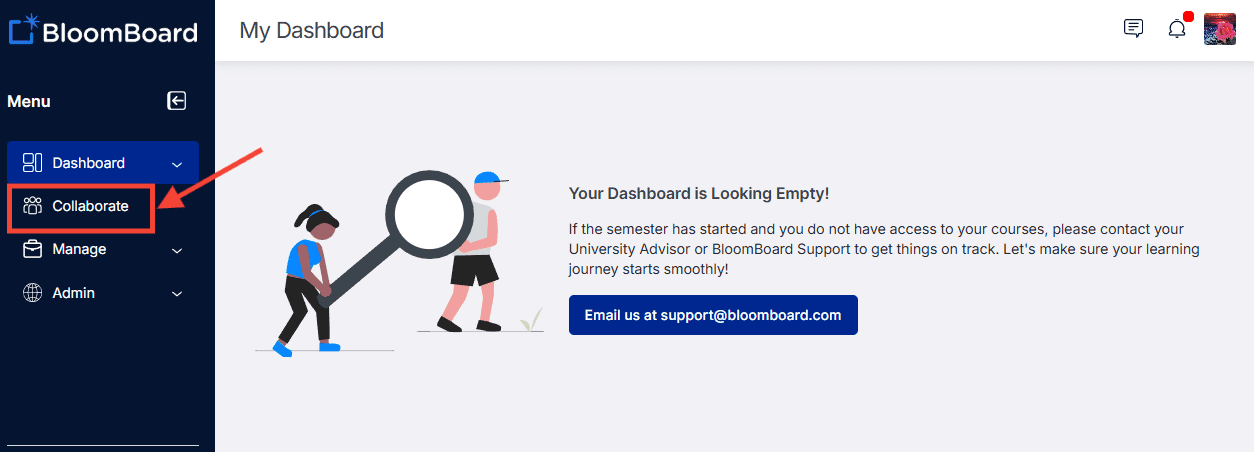
You can send and receive direct messages and join a discussion by clicking Collaborate in the navigation bar on the left side of your screen of your Dashboard well.
Notifications can be cleared by clicking the X to the right of the notification or by clicking on the notification hyperlink to go directly to your message.
Once in the Collaborate space, you can choose the discussion you would like to participate in from the Collaborate menu on the left.
At the bottom of your screen, you will see a spot to type in your message. You can also @ mention individuals, add a file, link to a website, or add an emoji. Participants can also respond to a discussion post.
To see your Direct Messages, click the Direct Message tab in Collaborate. For information on how to send a direct message, click here.
Profile Panel - You can also learn more about the people participating in your conversations. You can click on either the name or profile picture of the person you are messaging to open an information panel that will include the person's name, role (such as coach or faculty), organizations, and cohort sections that you have in common, as well as an easy way to message them directly from that panel.