Once a course has ended, it will be removed from your dashboard to allow easy access to active courses. You can access prior courses in two ways: your My Courses View or your Profile.
My Courses View:
Your My Courses View gives an overview of the degree or certification you are completing, as well as a view of any Program Requirements and Courses associated with that degree or certification. Some degrees have Program Concentrations and/or Capstones, which will also appear in this view.
To access your My Courses View:
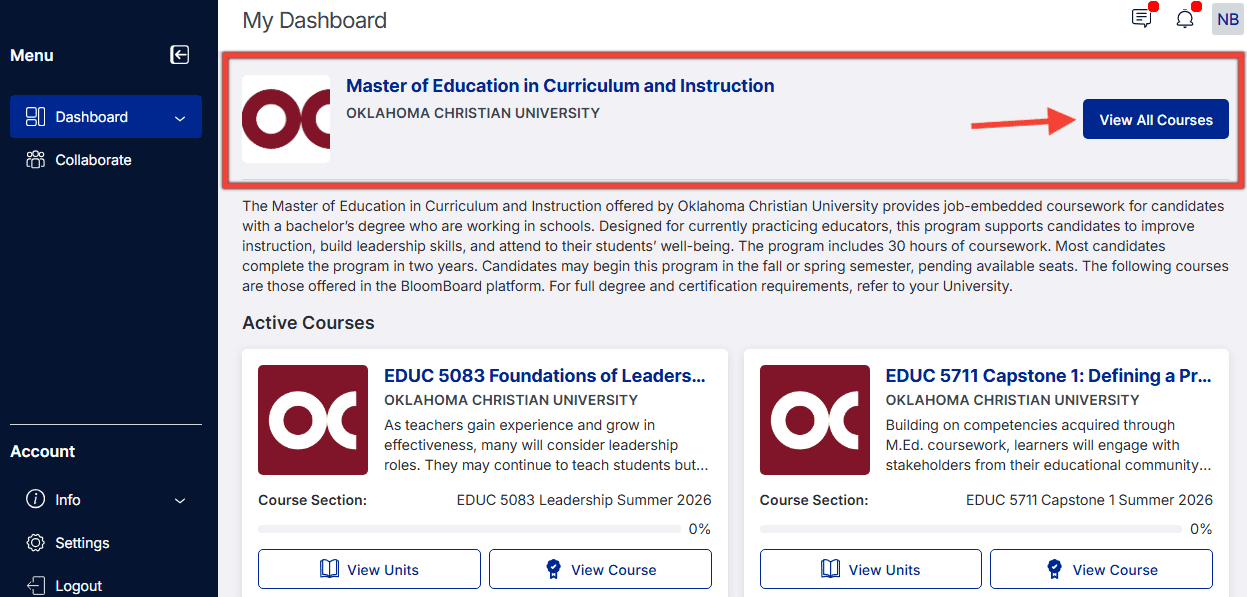
1. On your Dashboard, click View All Courses.
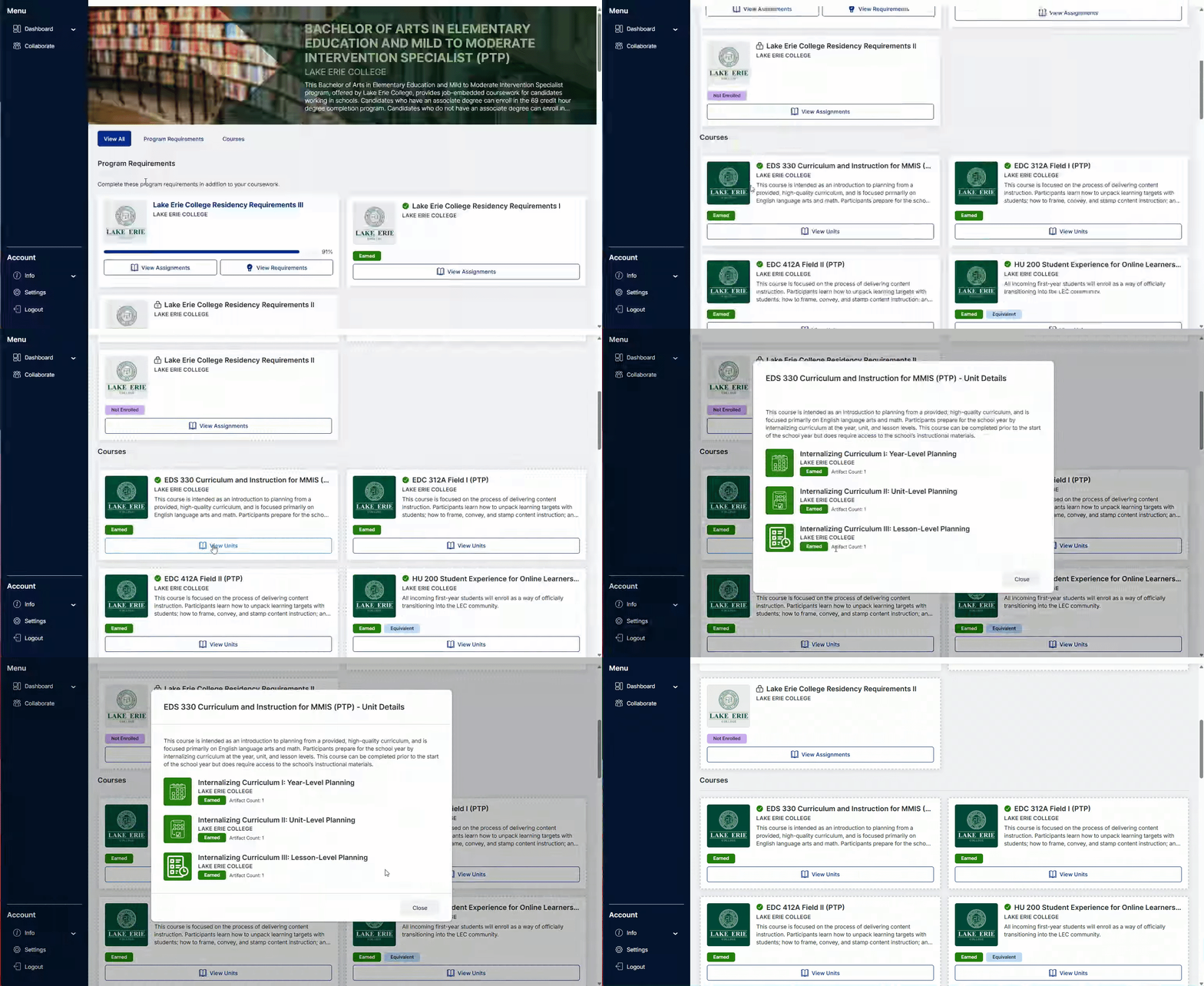
2. Scroll to view all courses and requirements associated with your degree or certification program.
- Active Courses will have an In Progress designation.
- Earned Courses will have an Earned designation.
- Courses that are not yet available for completion will display a lock icon.
3. To view which units each course consists of:
- Click on View Units directly below the course title. The course will expand to show the included units.
Profile:
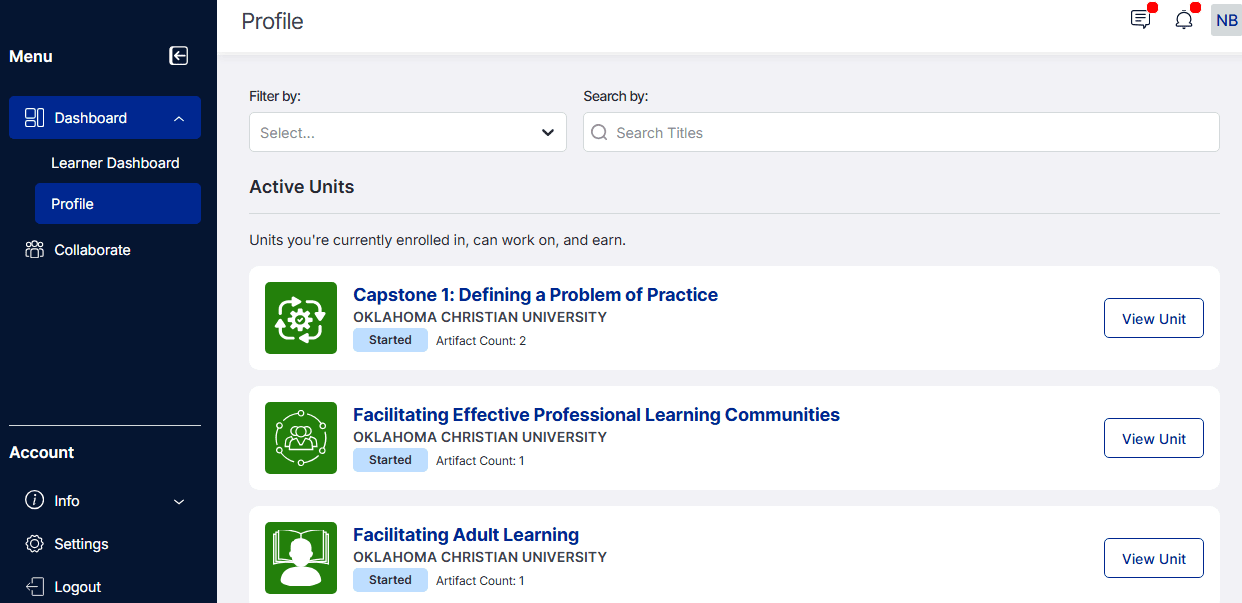
Your profile includes information about your account and gives you quick access to units you are either working on or have already earned.
To access your Profile:
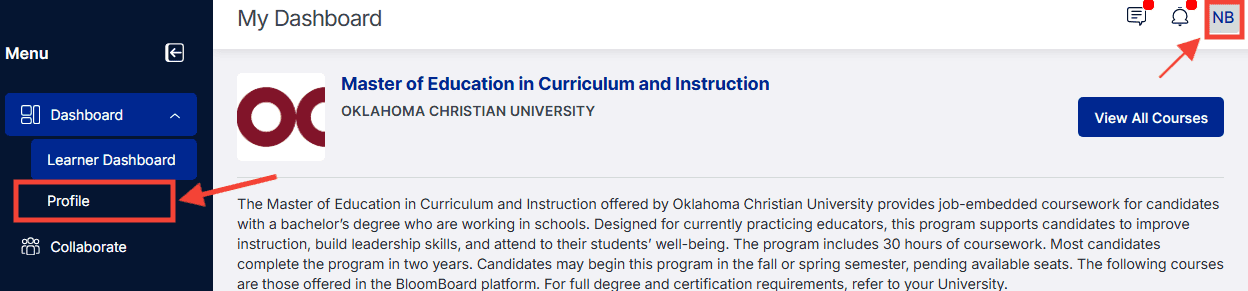
1. Click on your profile picture or choose Profile from the navigation bar on the left side of your dashboard.
2. This view shows Active Units at the top and Non-Active Units at the bottom. Click on a unit title. This will take you to that unit to review your completed artifacts and assessment feedback.
Downloading Your Badges:
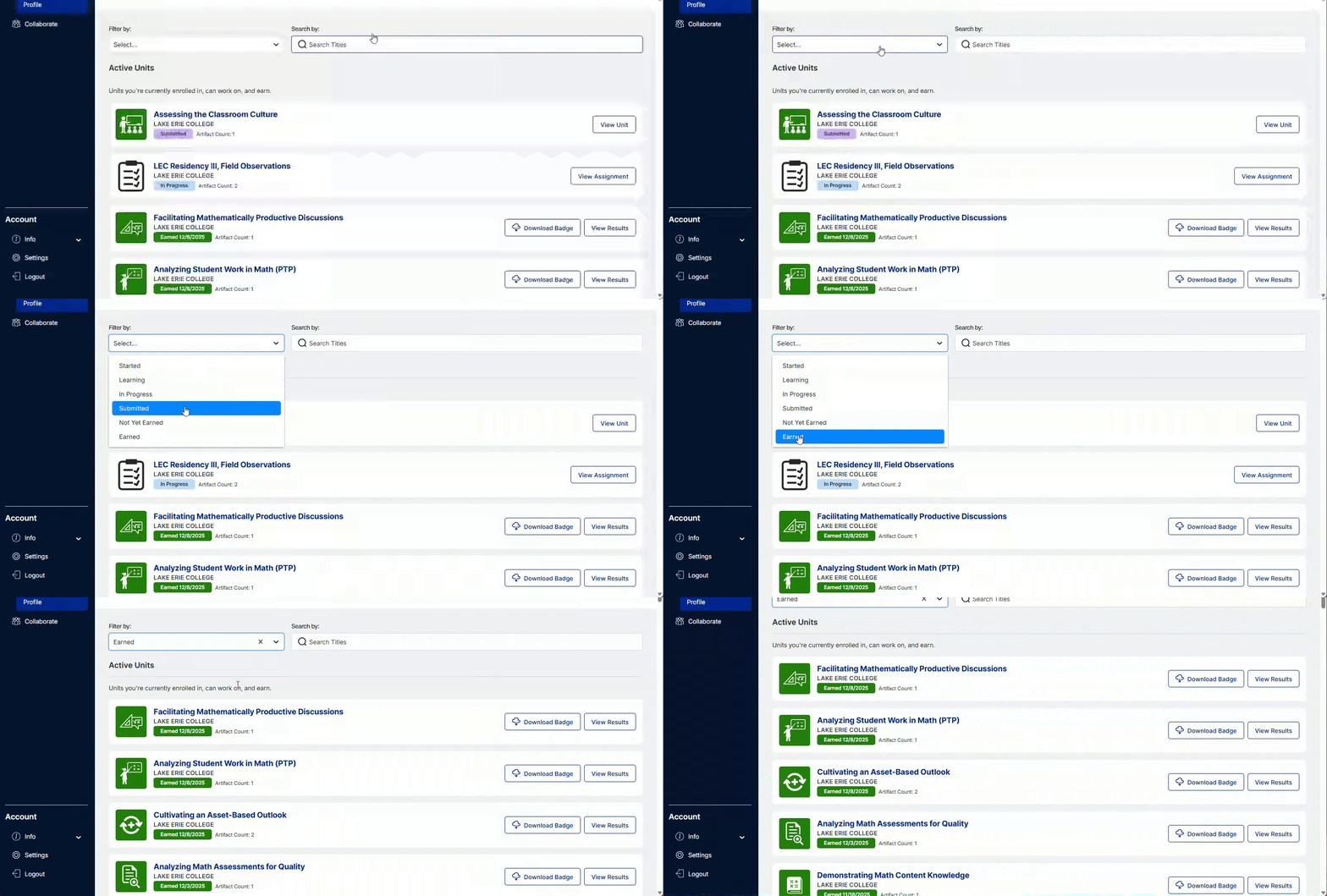
- From your profile page, filter to your Earned units or search by specific unit title.
- Click the Download Badge option to the right of the title of the unit.