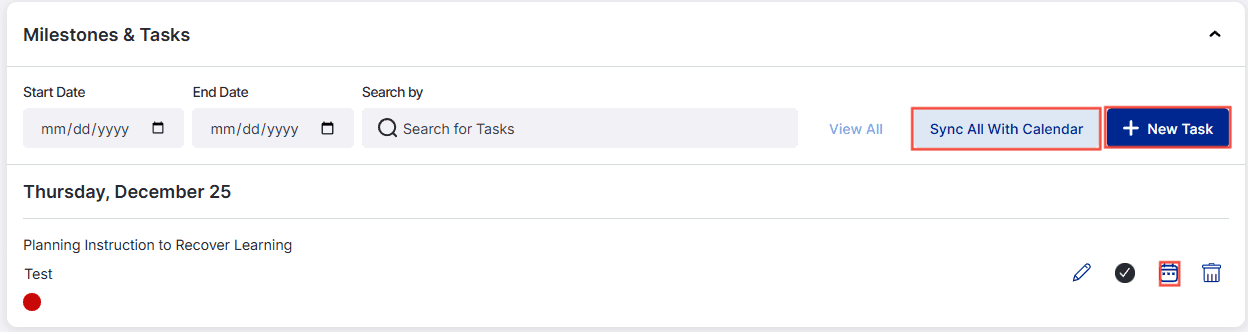
Your Active Course page includes the information you need to help you view your units, set milestones/tasks, and see your entire course displayed in one place, as well as information specific to your organization.
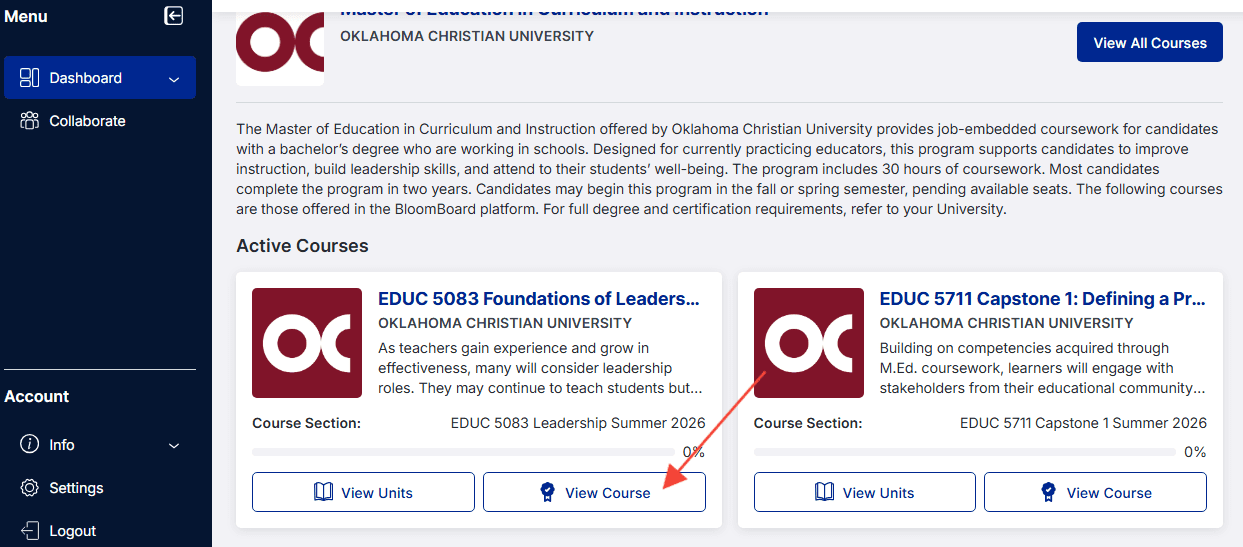
On your Learner Dashboard in the Active Course section, click the View Course button in the bottom right of the course tile to be taken to the course information page.
The top of the page will have information specific to your course, such as start and end dates, cohort information, a welcome message, and faculty or coach information. Each course is different, so this information will vary. Click the top buttons to navigate to each topic to find more information.
Welcome Message
The text found here is specific to your organization and program and explains what you can expect throughout this course. It may also include helpful links or tips to get started on your work.

Section or Cohort Information
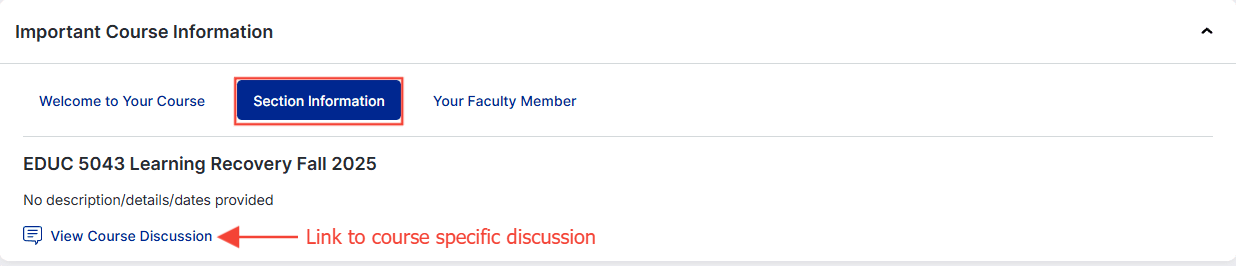
This may include cohort-specific information, such as program start and end dates or links to your cohort discussion.
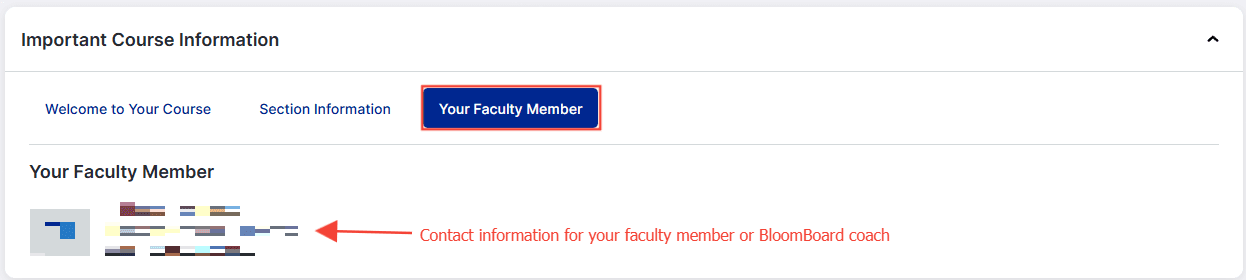
Your Faculty Member or Coach
The name of your Faculty Member or BloomBoard coach is displayed here. You can use this information to send a direct message in the Collaborate space. More information can be found in the article Introduction to Collaborate.
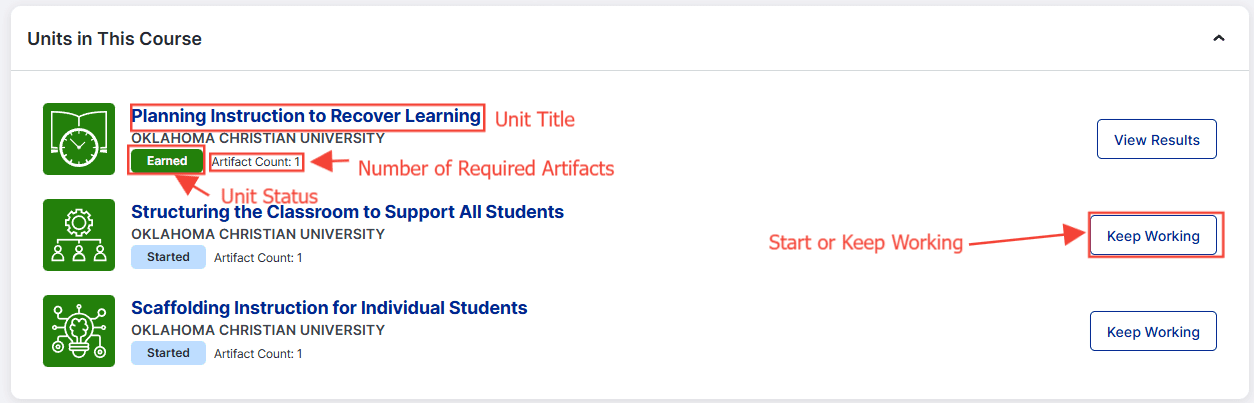
View your Units
You can access your units from this page to start or keep working. Some key details about your unit can be found on this page, such as the name and number of required artifacts. This information can be helpful when creating milestones & tasks, as some artifacts may be similar and can be shared across units or may be tied to a specific part of your school calendar.
Milestones & Tasks
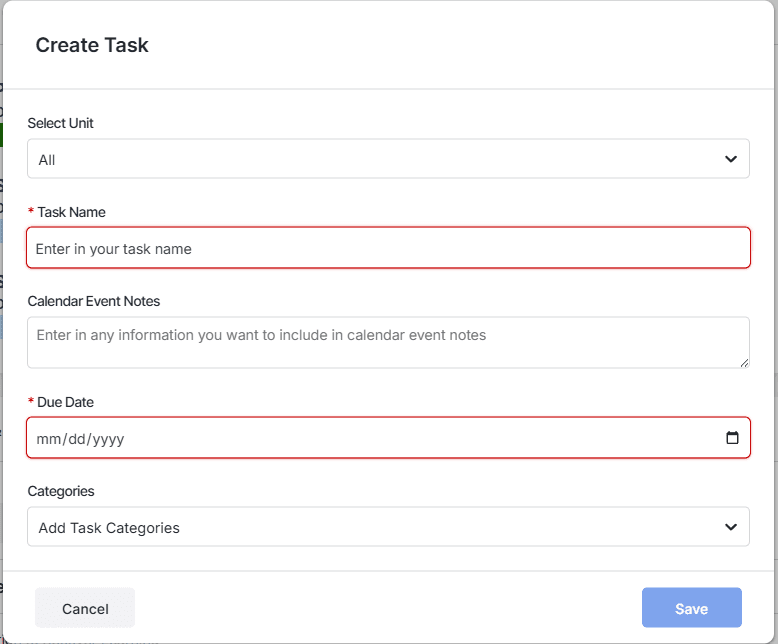
In this section, the participant can create new tasks related to each course. The blue + New Task button allows you to create a new task. These tasks can have a specific due date and can be linked to your calendar. You can sync these tasks individually by clicking on the calendar button next to the task, or sync them all by clicking the blue Sync All With Calendar. Tasks can also be edited by clicking on the pencil, marked complete by clicking the check, or deleted by clicking the trash icon. Your faculty member or coach may also add milestones such as suggested submission dates as well as program end dates here.