If your artifact is not assessed as Earned, you will need to update your evidence once you have reviewed your feedback and resubmit it so that it can be assessed again.
The BloomBoard platform allows for one file upload per Artifact Part. If a new file is required in a resubmission, the evidence in that new file will be used to assess the requirements and/or prompts in the associated Artifact Part.
You must be toggled to the Submission (In progress) in order to make any updates. If a specific submission date is visible, you will only be able to view the artifact and feedback from that submission.
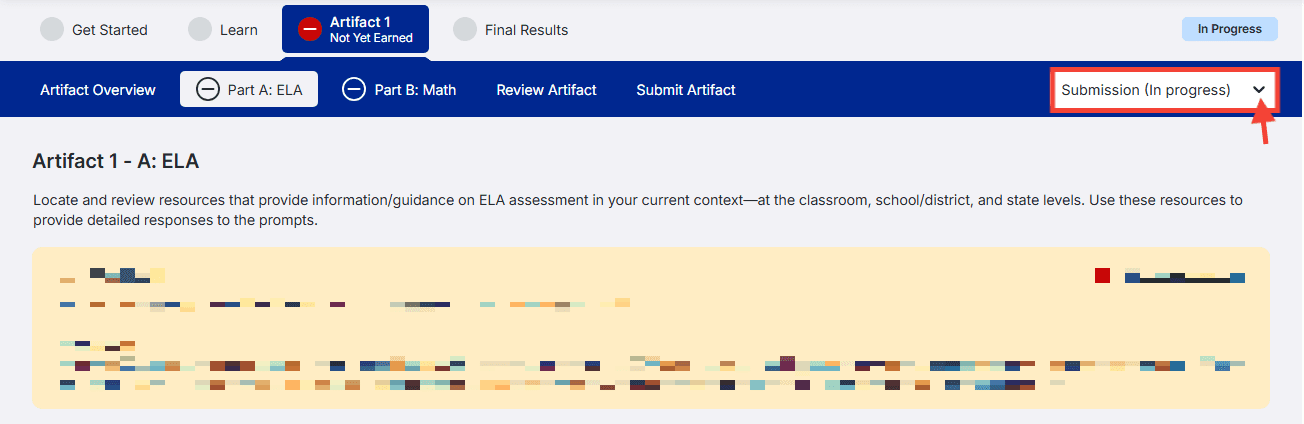
Updating a File:
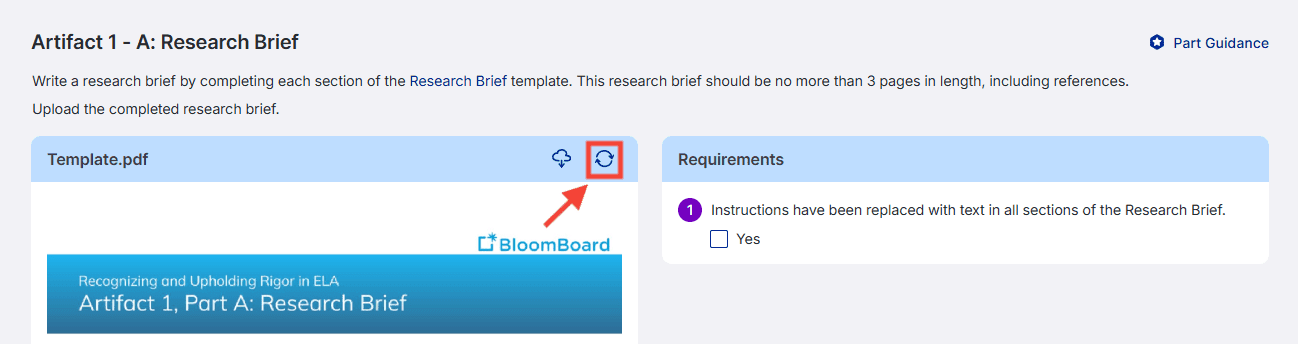
- Click the Replace icon to upload a new file.
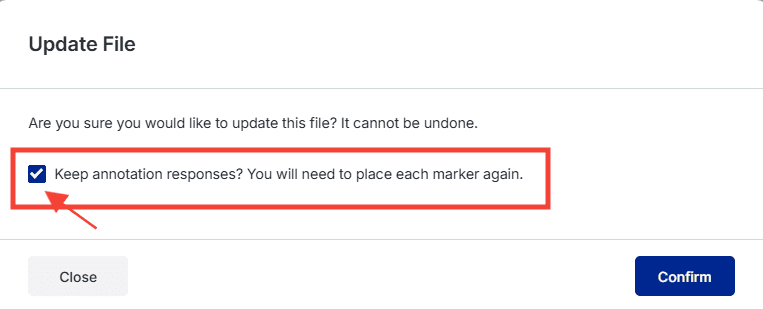
- If your original file included annotations, choose whether you would like to keep those annotation responses. Please note, that even if you choose to keep your annotation responses, every marker will need to be re-placed when uploading a new file.
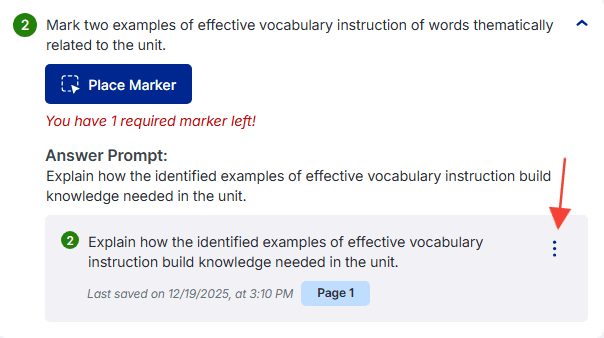
If you choose to keep your annotation responses, you will need to click the three dots to the right of your annotation and choose edit so you can update the placement of your marker as needed. You can adjust associated text responses as well.
Click Save Marker once you have updated your annotation.
- Once all of your edits have been made, you will navigate to Review Artifact. Once you have confirmed all requirements have been completed, navigate to the Submit Artifact tab to submit your work for review.
Updating a Form:
- You can update your form response as needed directly on the BloomBoard Platform. Be sure to click the blue Save button once you have updated your response.
- Once all of your edits have been made, you will navigate to the Review Artifact tab. Once you have confirmed all requirements have been completed, navigate to the Submit Artifact tab to submit your work for review.
For more information on how to review and submit, please view this support article: Completing an Artifact Overview .