You can customize your profile by adding a picture and updating your Professional and Personal Information sections. Your profile also contains your account settings, where you can update your email address, password, set up two-factor authentication, and view session login information.
Your Profile also includes a list of Active Units, providing quick access to units you are either working on or have already earned. For more information, click Accessing Prior Courses and Downloading Digital Badges.
To edit your profile information:
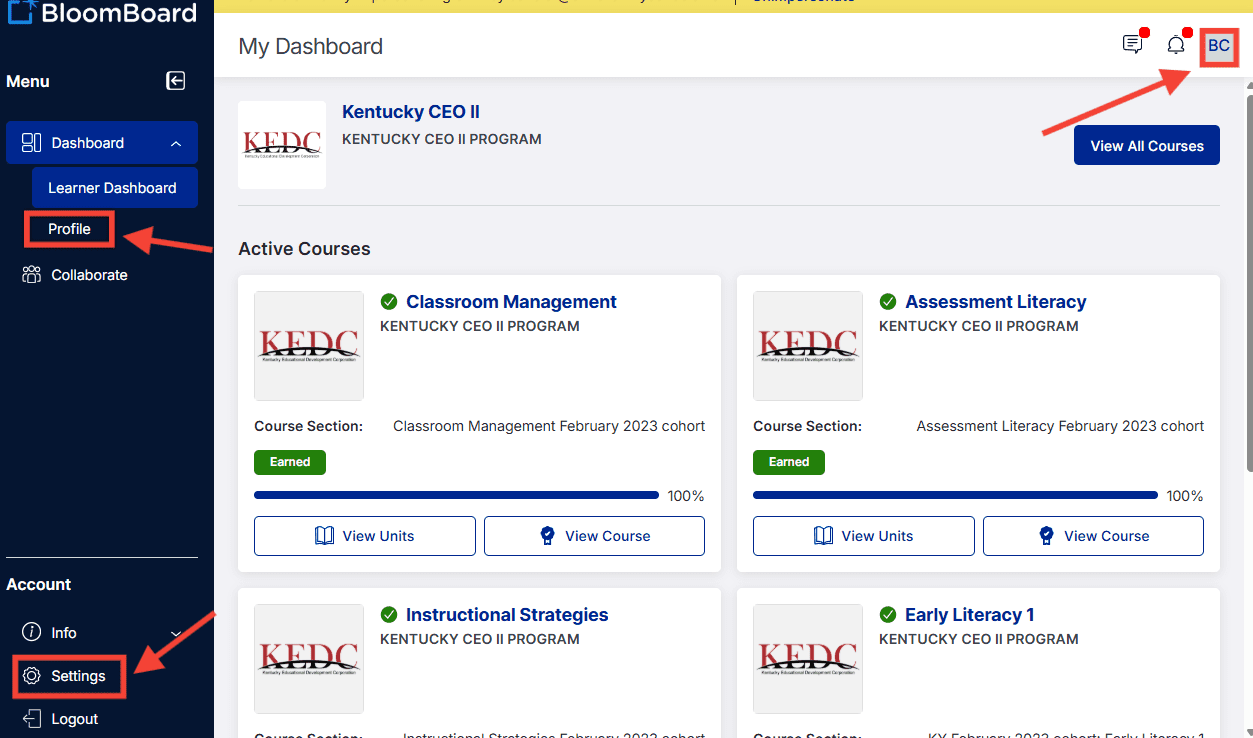
- Click Settings on the left-hand side of your Dashboard. Alternatively, you can click Profile on the left-hand side menu or your profile picture in the top right corner of your page and then click the Edit button to access your profile.
- Click the blue Save button once you have finished. You will need to save changes made on each tab separately.
- While in Edit mode:
- The first tab contains your Profile Settings. You can update your name, email address, profile picture, and professional information and personal information.
- To add or change your profile picture, click the Upload Profile Picture button to upload a file from your device.
- To add or change your profile picture, click the Upload Profile Picture button to upload a file from your device.
- The second tab allows you to update your Password. You will need to input your current password as well as confirm the password you are updating to. Your password must be 8 characters long, including one capital letter and one special character. This tab also allows you to set up Two Factor Authentication to increase your account Security. This is not required.
- The final tab shows your login Sessions information as an added security feature. This is helpful for users on shared devices.