The Cohort Dashboard is available to BloomBoard users with the Coach and Faculty roles. The Cohort Dashboard provides the ability to:
- View cohort progress within each unit.
- View cohort participants’ evidence by artifact within each unit.
- View cohort participants’ assessment feedback by artifact within each unit.
- View participants' pictures and bio within a selected cohort or section.
- View participants’ degree progress.
- View cohort progress within an entire course.
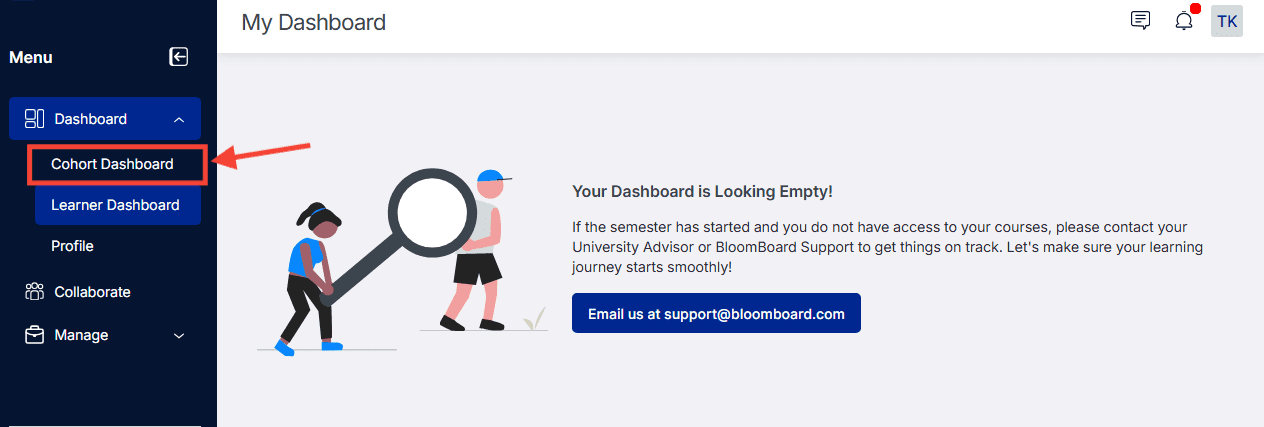
To get started, navigate to my.bloomboard.com and click on Cohort Dashboard.
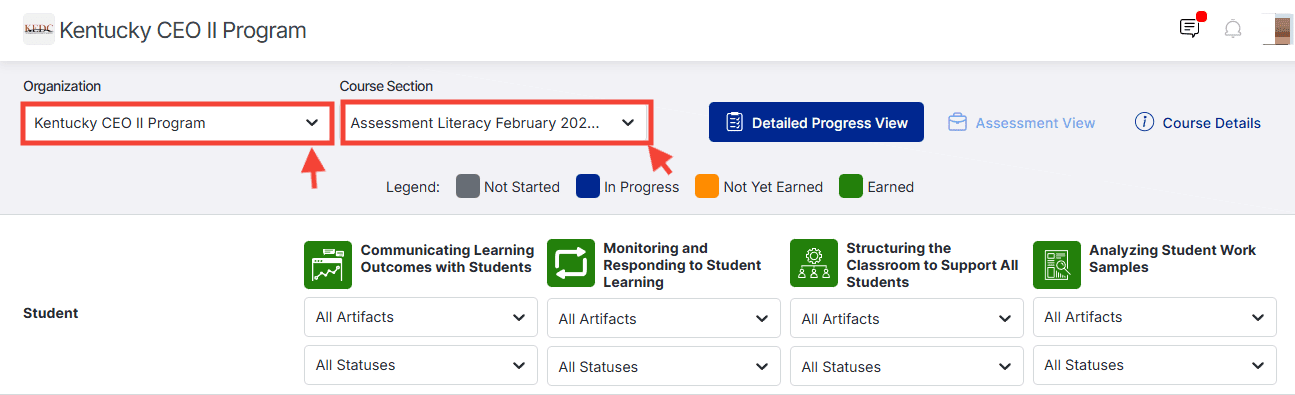
If you are a coach or faculty member with multiple organizations or cohorts, use the drop-down filters to choose an organization and then the section you would like to preview.
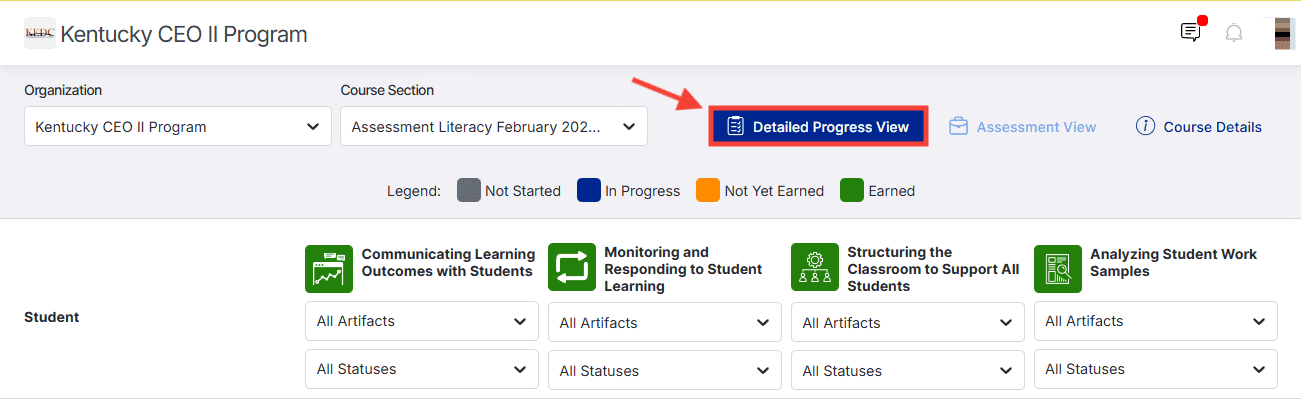
View cohort progress within each unit:
-
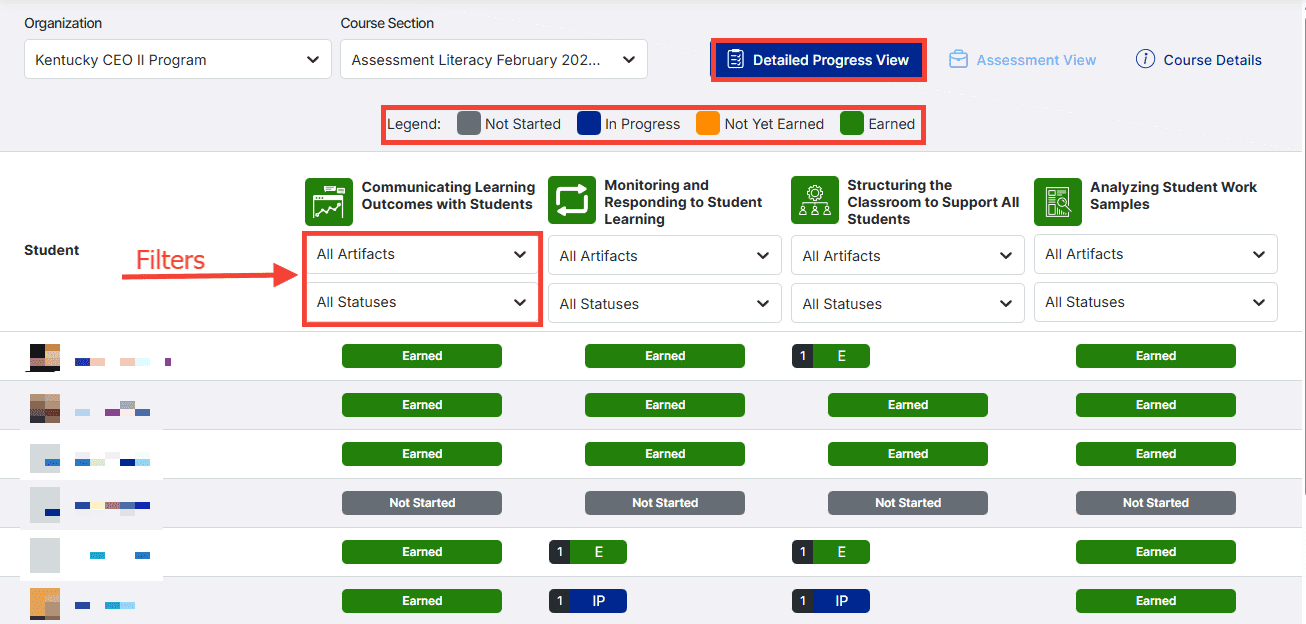
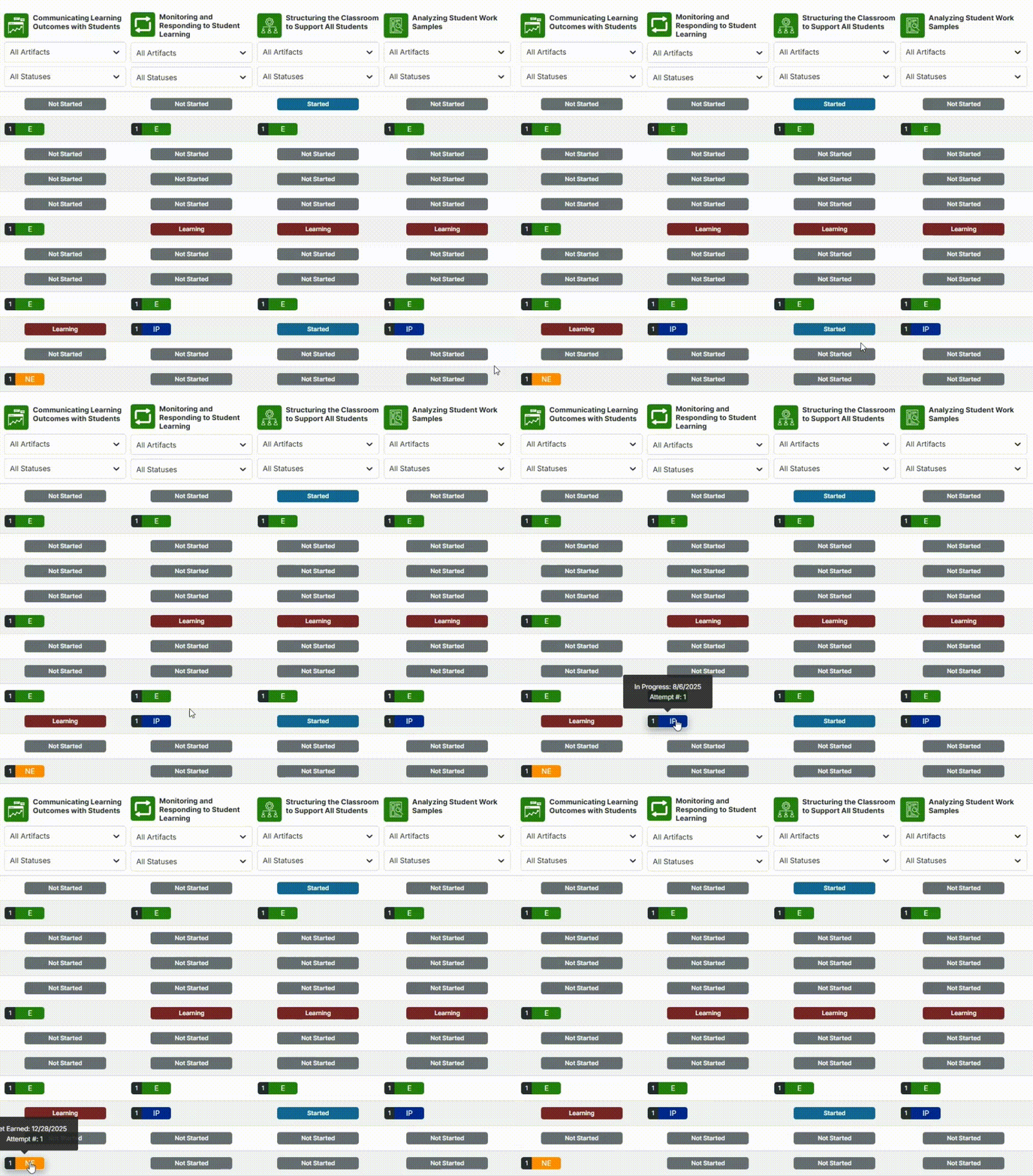
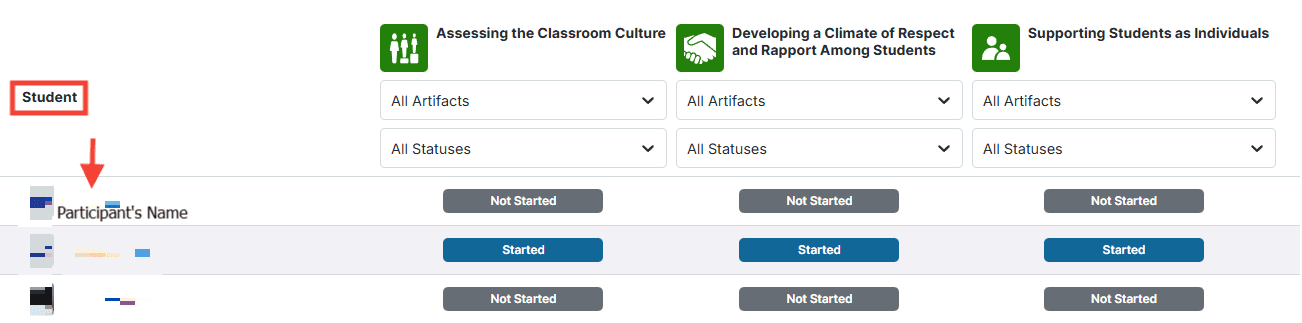
The Detailed Progress view provides an overview of each participant’s progress by artifact within each unit of the course.
Please note that you may need to use the horizontal scroll to view all units within the course.
-
See this article for more information on submission statuses to help you analyze your program data. You can also filter each title by status as well as by artifact.
-
Hover over the status to use tooltips to view attempt # and last modification date for each artifact within the unit.
View cohort participants’ evidence by artifact:
-
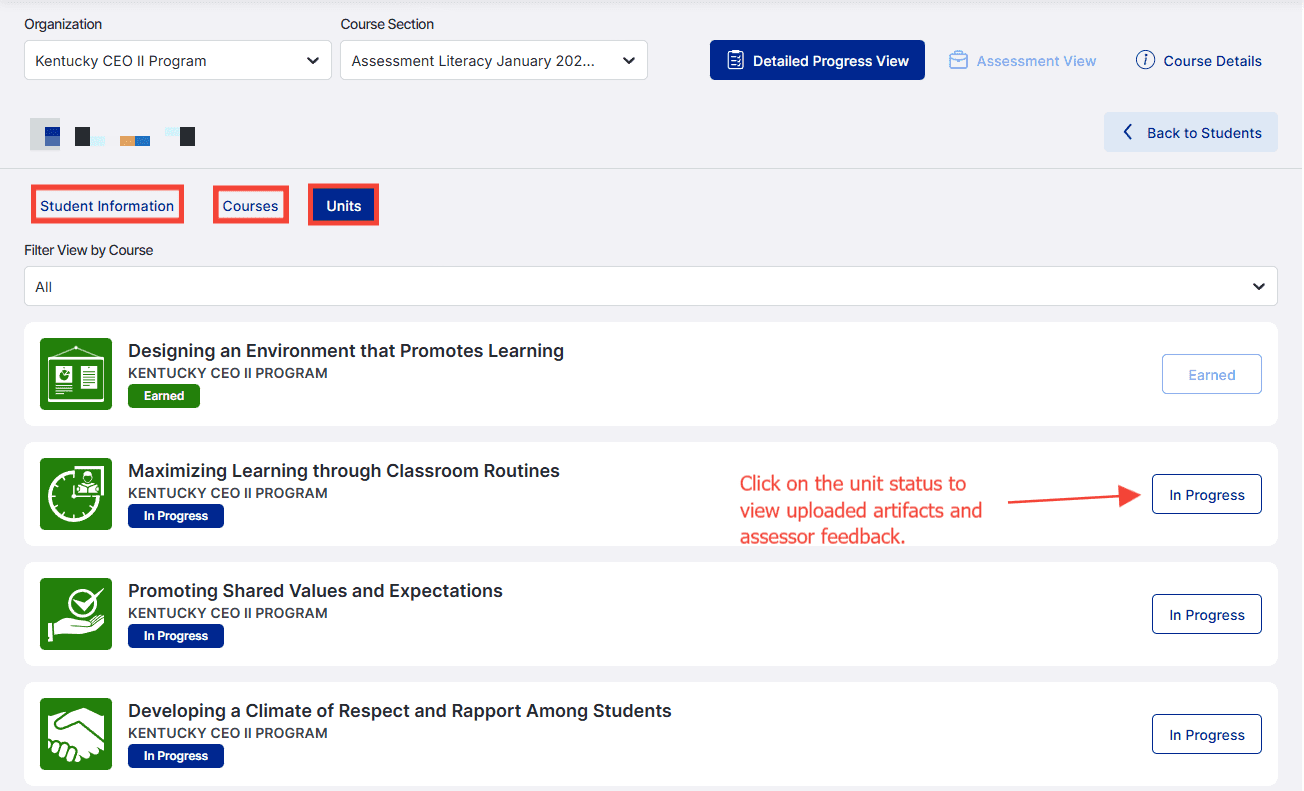
Click on the participants’ name to see what they most recently worked on or uploaded, and view their progress.
- Click the participant's name.
- Access the Units tab.
-
Click on the unit status to view artifacts that have already been uploaded. You will also be able to view feedback left by the assessor.
View cohort participants’ assessment feedback by artifact within each unit:
-
Use the Detailed Progress menu to select a participant with an In Progress, Not Yet Earned, or Earned status.
- Scroll to the unit title and click the unit status to see the assessment feedback the participant has received on a submitted portfolio. You can click on an artifact's status to be taken to that participant's uploaded artifact.
View participants' information within a cohort:
-
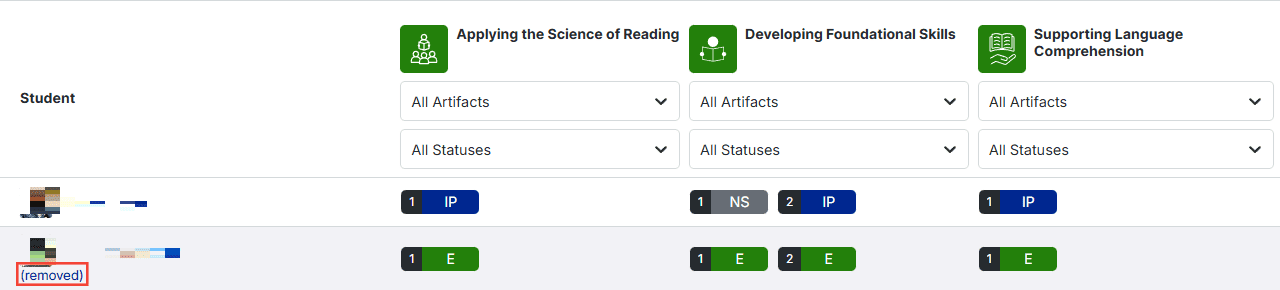
From the Detailed Progress View, scroll down to view all of the participants within the Student section.
-
Participants who are removed from the cohort are labeled as (removed).
-
Click on an individual participant to view the bio they have written (if applicable).
View Participants’ degree progress:
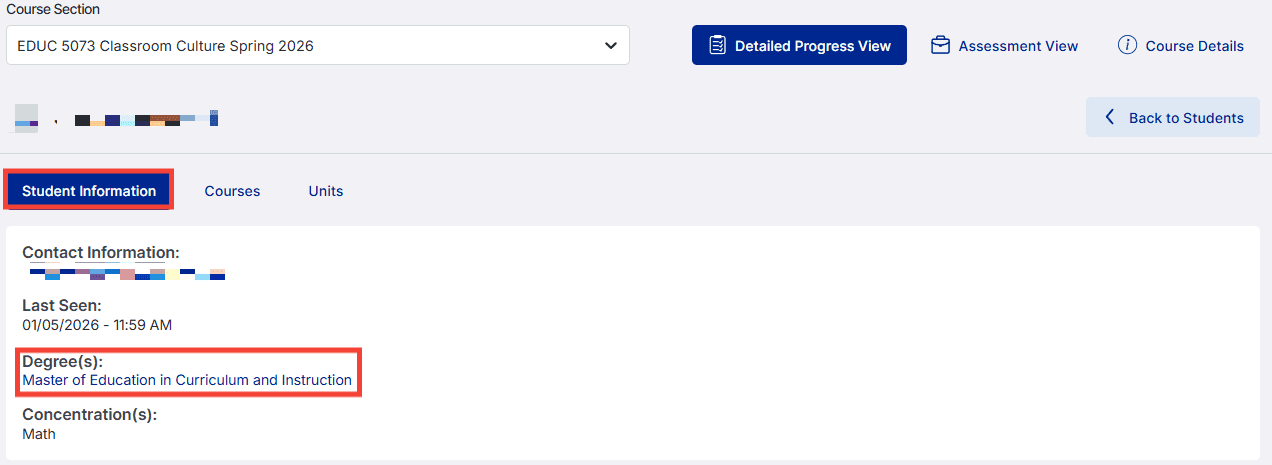
- Click the participant's name.
- Select the Student Information tab
- Click the link directly below the Degree(s) section to view their degree progress.
View cohort progress within an entire course:
Under the Student section, select a participant's name to learn about their progress within the course.
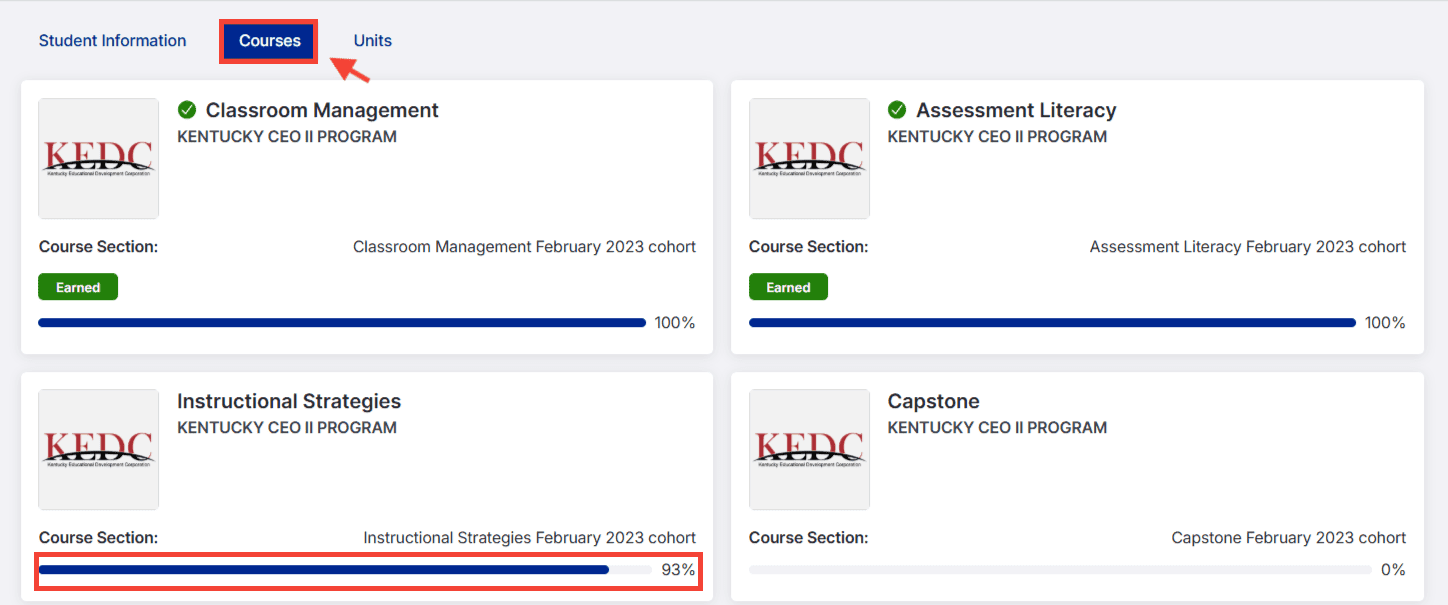
Select the Courses tab to view a participant's course status.
Select the Units tab and filter by course to view their progress for that course.
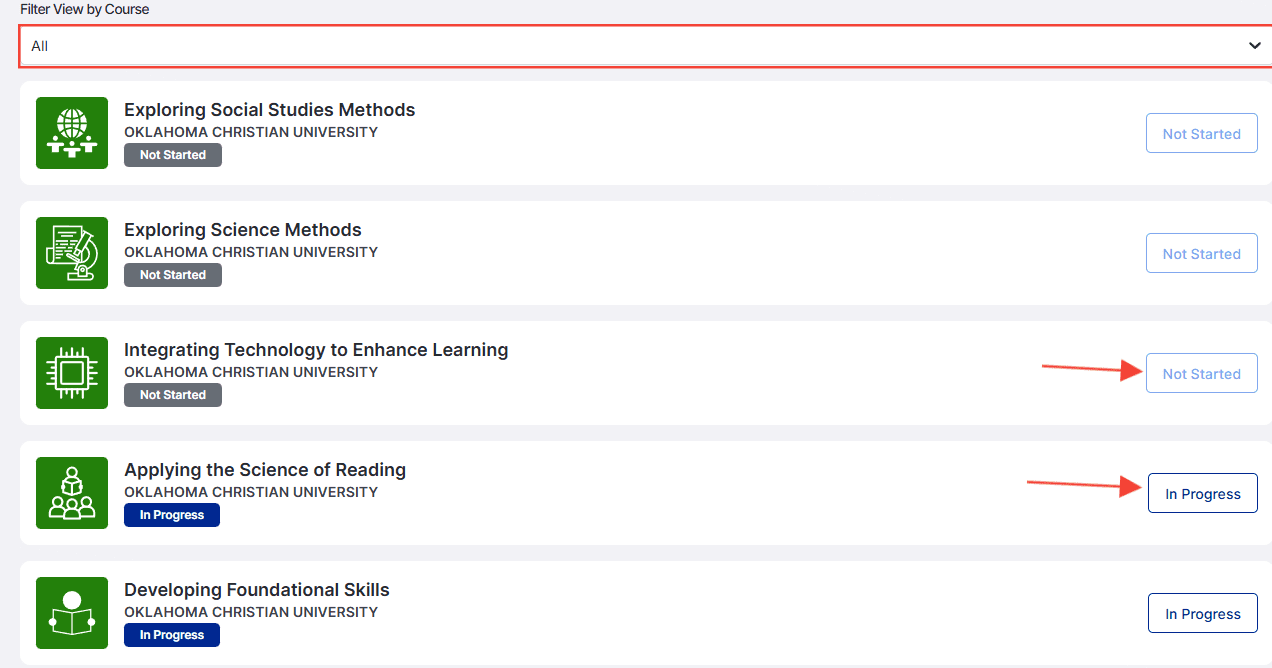
You can view the status of each title within the course.
Unit status definitions:
- In Progress: The participant has started the unit.
- Not Started: The participant has not yet accessed this unit.
- Submitted: The participant has submitted the unit for review.
- Resubmission: The participant is working on a second (or more) attempt at earning the unit.
- Earned: All artifacts within the unit have been submitted and earned.